Zotero: how to sync Zotero with OneDrive using Zotmoov
Due to Zotero’s storage space capacity limitations (300 MB), you can only store a limited number of PDF’s in your Zotero library. With Zotmoov, you can use Ghent University’s OneDrive storage space (1 TB) to store the PDF’s you add to your Zotero library. This greatly increases the number of PDF’s you can add, while retaining access to your Zotero library from any device.
Set up Zotero
Before downloading and setting up Zotmoov, you first need to set up Zotero. Go to the Sync tab in your Zotero settings, log in to your Zotero account and allow syncing.
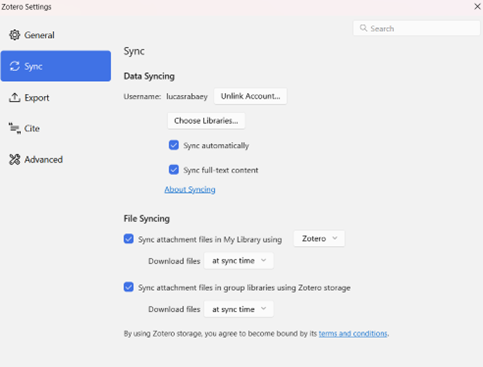
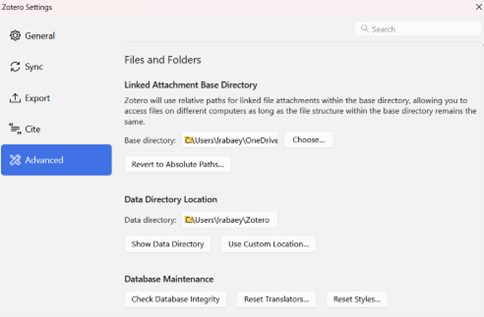
Then, head over to the Advanced tab and set up a ‘Linked Attachment Base Directory’. Here, you will indicate that Zotero should use your OneDrive to store linked attachments. Within OneDrive, you can create a separate folder to store your Zotero PDF’s (otherwise they will appear in your general OneDrive). An example OneDrive directory would be "C:\Users\UGent_username\OneDrive - UGent\Zotero". Zotero will then store the PDF’s in the specified folder.
The ‘Data Directory Location’ can be kept as is: this is the place where Zotero will store all the reference information (metadata, notes, tags, etc.). An example data directory is “C:\Users\UGent_username\Zotero”.
Download and install Zotmoov
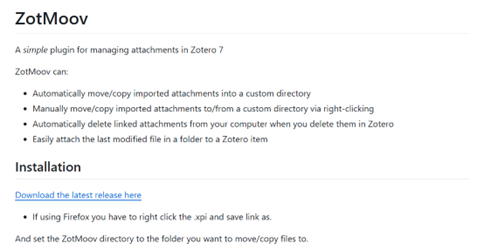
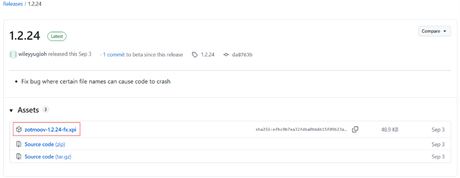
Download Zotmoov from Github: https://github.com/wileyyugioh/zotmoov. Under ‘Installation’, you can download the latest release. Select the .xpi file.
In Zotero, go to ‘Tools’ > ‘Plugins’, click the small gear icon in the top right corner and select ‘Install Plugin from File’.
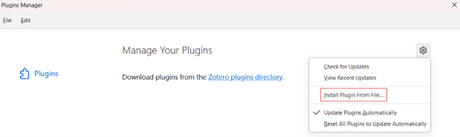
Select the downloaded .xpi file, and Zotmoov will appear in your Plugins.

Set up Zotmoov
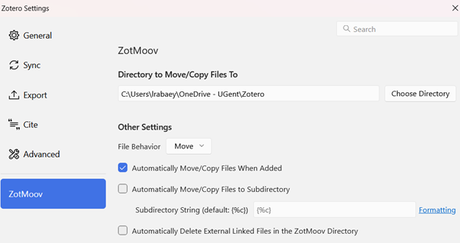
Zotmoov will now appear as a tab in your Zotero settings. From that tab, you can select the directory Zotmoov will automatically move files to when you add a PDF to Zotero. Setting this to a OneDrive location allows you to use your OneDrive storage space to store all PDF’s linked to your Zotero library. Ensure that this directory is the same as your linked attachment base directory, and you will be able to access these PDF’s through Zotero regardless of the device you’re working on.
When you have this setup and add a PDF to Zotero, it will find the metadata for the file, and Zotmoov will automatically move the PDF to the specified folder on OneDrive.
Move your existing library and PDF’s to OneDrive
If you already have a library of references and associated PDF’s, Zotmoov also allows you to move these PDF’s to the OneDrive directory, while keeping the associated references. To do that, right click on the references/PDF’s you want to move and select ‘Zotmoov: Move Selected to Directory’.
It is recommended that you back up your existing Zotero library before doing this. Go to ‘File’ > ‘Export Library’ and select notes and files to copy your existing library to your device, with all of the notes and PDF’s.

Meer tips
- Zotero: how do I manage my sources in Zotero? (Schrijven)
- Zotero: how to cite in Word or LibreOffice (Schrijven)
- Zotero: how to install Zotero? (Schrijven)
Laatst aangepast 30 oktober 2025 14:32